
Professional networking · 6 min read
How to Make a LinkedIn QR Code for Business Cards and Resumes
Make an eye-catching LinkedIn QR code for business cards, resumes and event badges. Learn which profile link to use, how it compares to LinkedIn's built-in code and how to test it.
By MosaicQR team · Published · Updated
Most networking happens in person, but the follow-up happens on LinkedIn. You meet someone at a conference or a coffee chat, they promise to connect, and then they cannot find you among a dozen people with the same name. A QR code removes the search.
A LinkedIn QR code opens your profile in one scan. A MosaicQR code puts a recognizable LinkedIn cue in the artwork, so people know they are about to land on a professional profile before they lift their phone. It works on business cards, resumes, event badges and the last slide of a talk.
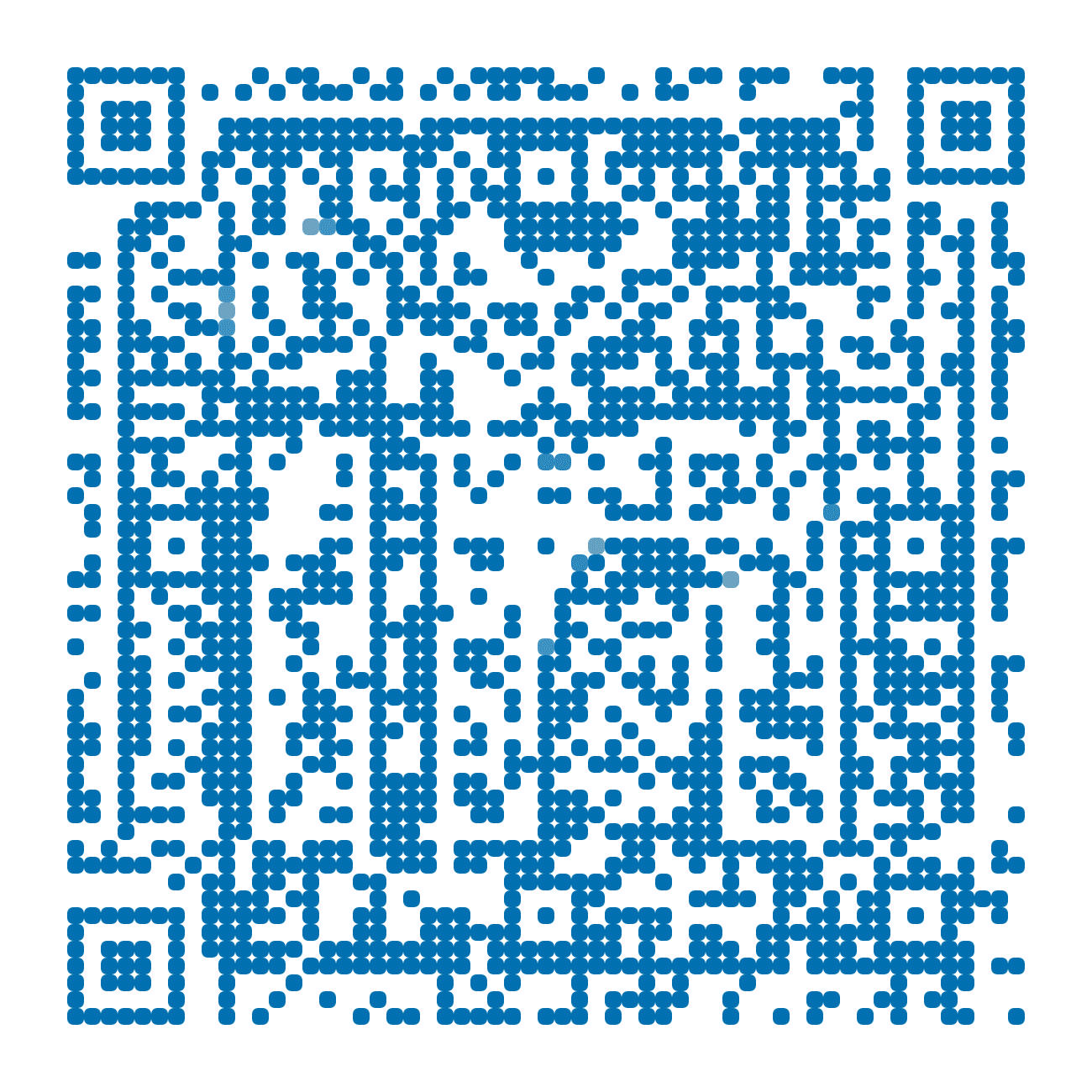
LinkedIn profile example
Satya Nadella
A public profile destination for a business card, a resume header or a conference badge. Print a short prompt next to it like “Scan to connect on LinkedIn.”
Open the profile on LinkedInTry this profile link in MosaicQR →
This direct-link example was rendered with MosaicQR’s image engine. LinkedIn and Satya Nadella own their respective names and marks. This example is not sponsored or endorsed by them.
Get the right LinkedIn link
The code is only as good as the link inside it. You want your public profile link, which looks like linkedin.com/in/ followed by your name. Links to a post, your feed or a search result send people to the wrong place.
On a computer, open your profile and look for the option to edit your public profile and URL. LinkedIn lets you replace the default string of numbers with something clean, like your first and last name. Change it before you print anything, because older cards will point at the old link.
For a business, use the company page link instead. It looks like linkedin.com/company/ followed by the page name. The form below accepts both.
LinkedIn’s built-in code vs a recognizable one
The LinkedIn mobile app can show a plain QR code for your profile. It is free and handy when you are standing next to someone with your phone out. It uses a standard design, so it can look out of place on a card or a resume you spent time laying out.
A MosaicQR code uses the same profile link but turns it into artwork with a LinkedIn cue in the middle. People spot it as a LinkedIn link before they scan, which builds a little trust on printed material where a random black and white square might get ignored.
Make your LinkedIn QR code in three steps
- Copy your public profile link. Open it in a private browser window and confirm it shows your profile, not a sign-in wall with someone else’s name.
- Paste it into MosaicQR. The form below recognizes a LinkedIn profile or company page and carries it into the generator.
- Activate, test and download. Complete the current account and activation steps, then scan the exported artwork before you send it to your printer.
Give people a reason to scan
“Connect with me on LinkedIn” works, but a specific reason works better. Try “Scan to see my portfolio and past projects” on a resume, or “Let’s keep talking after the event” on a badge. Keep it short enough to read at arm’s length.
Make sure the profile is worth the scan. A current photo, a clear headline and a recent post or two do more for a new connection than the code itself.
Where a LinkedIn QR code works
- Business cards: Put the code on the back, so the front stays clean and the card still works for people who do not scan.
- Resumes: A small code in the header lets a hiring manager reading a printed copy jump to your full history and recommendations.
- Event badges and lanyards: Conferences and meetups are where most new connections start, so make yours one scan away.
- Slides and talks: Show the code on your last slide while people are still in their seats.
- Booths and storefronts: Businesses can link a company page from a trade show booth or a counter sign.
In an email signature or a digital resume, use a normal clickable link to the same profile. A QR code helps most when someone is holding something physical.
Use the LinkedIn cue honestly
The LinkedIn cue in the code tells people where they will land. It does not mean LinkedIn made your card or endorses you, so do not word the prompt as if it does.
Test the scan before you print
LinkedIn links open differently depending on the phone. Some open the LinkedIn app, others open a browser, and people who are not signed in may see a limited version of your profile. Those screens are controlled by LinkedIn, so test more than one path.
- Scan with current iPhone and Android camera apps.
- Try one phone with the LinkedIn app installed and one without it.
- Confirm your name and photo on the profile that opens.
- Scan the final export at its printed size on the real card stock.
- Check badges and slides from the distance people will scan them.
See the MosaicQR printing guide for sizing and export guidance. Print your name near the code so people can still search for you if they cannot scan.
The current MosaicQR generator creates dynamic codes. Follow the account and activation details it displays, and check any destination update with a fresh scan before you reuse older printed material.
Make a LinkedIn QR code people recognize
Paste your LinkedIn profile or company page link. We’ll recognize it and carry the destination into the MosaicQR generator.