
Review collection · 6 min read
How to Make a Google Review QR Code Customers Actually Scan
Make an eye-catching Google review QR code for receipts, table cards and counter signs. Learn which review link to use, how to ask without breaking Google's rules and how to test it.
By MosaicQR team · Published · Updated
Most happy customers never leave a review. They mean to, but by the time they get home they have forgotten, or they cannot find the right button on your listing. A QR code catches them while they are still at the counter or the table.
A Google review QR code opens your review form in one scan. A MosaicQR code puts a recognizable Google cue in the artwork, so people know where the scan goes before they lift their phone. It works on receipts, table cards, counter signs and the bag you hand over at checkout.
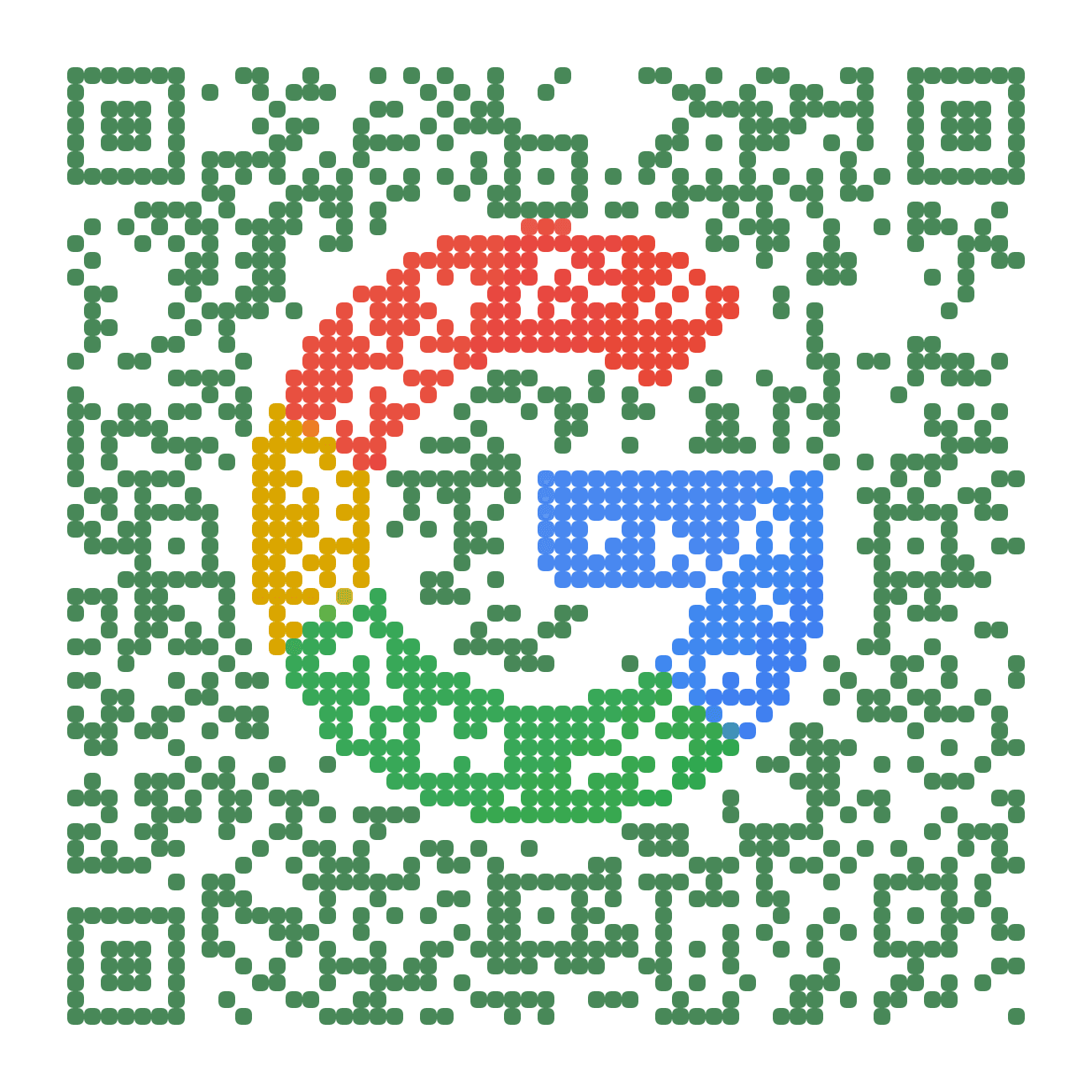
Google review example
Katz’s Delicatessen
A review form destination for a receipt, a table card or a sign by the register. Print a short prompt next to it like “Enjoyed your visit? Tell us on Google.”
Open the review form on GoogleTry this review link in MosaicQR →
This direct-link example was rendered with MosaicQR’s image engine. Google and Katz’s Delicatessen own their respective names and marks. This example is not sponsored or endorsed by them.
Get the right Google review link
The code is only as good as the link inside it. A normal Maps link opens your listing, and people still have to find the review button. You want the link that opens the review form directly.
If you manage the business, open your Google Business Profile on a computer and choose the option to ask for or get more reviews. Google gives you a short link that looks like g.page/r/ followed by an ID and /review. Copy it exactly.
If you cannot reach the dashboard, you can build the link from the business’s Place ID, which Google’s Place ID Finder shows for any listing. The link looks like search.google.com/local/writereview?placeid= followed by an ID that starts with ChIJ. That is the format used in the example above.
Google’s built-in code vs a recognizable one
Your Business Profile can also show a plain QR code for the same review link. It is free and fine for a quick test. It uses a standard black and white design, so it can look out of place on a menu or a printed card you spent time on.
A MosaicQR code uses the same review link but turns it into artwork with a Google cue in the middle. People spot it as a Google review link before they scan, which helps when the code sits on something customers see every visit, like a table tent, a window sticker or the counter at checkout.
Make your Google review QR code in three steps
- Copy your review link. Open it once on your phone and confirm it shows the review form with the star rating for your business, not a different location.
- Paste it into MosaicQR. The form below recognizes a Google review link and carries it into the generator.
- Activate, test and download. Complete the current account and activation steps, then scan the exported artwork before you send it to your printer.
Ask for reviews the way Google allows
Google is clear that reviews must reflect a genuine experience. You can ask every customer for a review and put the code on receipts, signs and emails. You cannot offer a discount, a free item or any other reward in exchange for a review.
Do not filter who gets the code either. Showing it only to customers you think are happy, or sending unhappy ones somewhere else first, can get reviews removed. Give everyone the same prompt and ask for honest feedback, not five stars.
Give people a reason to scan
“Review us on Google” works, but a little warmth works better. Try “Enjoyed your meal? It takes a minute and helps a small business” or “Tell us how we did on Google.” Keep it short enough to read at arm’s length.
Timing matters more than wording. The best moment is right after a good experience, while the customer is still with you. A code they see at checkout or on the receipt beats one on a flyer they read a week later.
Where a Google review QR code works
- Receipts: Add it to the footer of printed receipts so every customer leaves with it.
- Table cards: Restaurants and cafes can place a small card on each table, where people have time to scan while they wait for the check.
- Counter signs: Salons, shops and repair services can put a sign near the register, where customers wait for a minute anyway.
- Packaging and bags: A sticker on a takeout bag or shipping box reaches people after they try what they bought.
- Business cards and invoices: Service businesses can add the code to the card or invoice they leave after a job.
In a follow-up email or text, use a normal tappable link to the same review form. A QR code helps most when the customer is looking at something physical.
Use the Google cue honestly
The Google cue in the code tells people where they will land. It does not mean Google made your sign or endorses your business, so do not word the prompt as if it does.
Test the scan before you print
Review links open differently depending on the phone. Some open the Google Maps app, others open the review form in a browser, and people who are not signed in to Google are asked to sign in first. Those screens are controlled by Google, so test more than one path.
- Scan with current iPhone and Android camera apps.
- Try one phone with Google Maps installed and one without it.
- Confirm your business name and address on the form that opens.
- Scan the final export at its printed size on the real material.
- Check table cards and signs under the lighting customers will have.
See the MosaicQR printing guide for sizing and export guidance. Print your business name near the code so people can still find you on Google if they cannot scan.
The current MosaicQR generator creates dynamic codes. Follow the account and activation details it displays, and check any destination update with a fresh scan before you reuse older printed material.
Make a Google review QR code people recognize
Paste your Google review link. We’ll recognize the review form and carry the destination into the MosaicQR generator.