Podcast promotion · 6 min read
How to Promote a Spotify Podcast With a Branded QR Code
Make a Spotify podcast QR code that opens your show page. Learn which link to use, where to place a branded code and how to test it before you print.
By MosaicQR team · Published · Updated
A live taping, conference talk or sticker on a coffee shop counter can make someone curious about your show. A QR code lets them go straight to your podcast on Spotify before that interest fades.
A branded Spotify podcast QR code adds a familiar Spotify cue. Pair it with your show name and a short prompt, so people know what they will find before they open their camera.
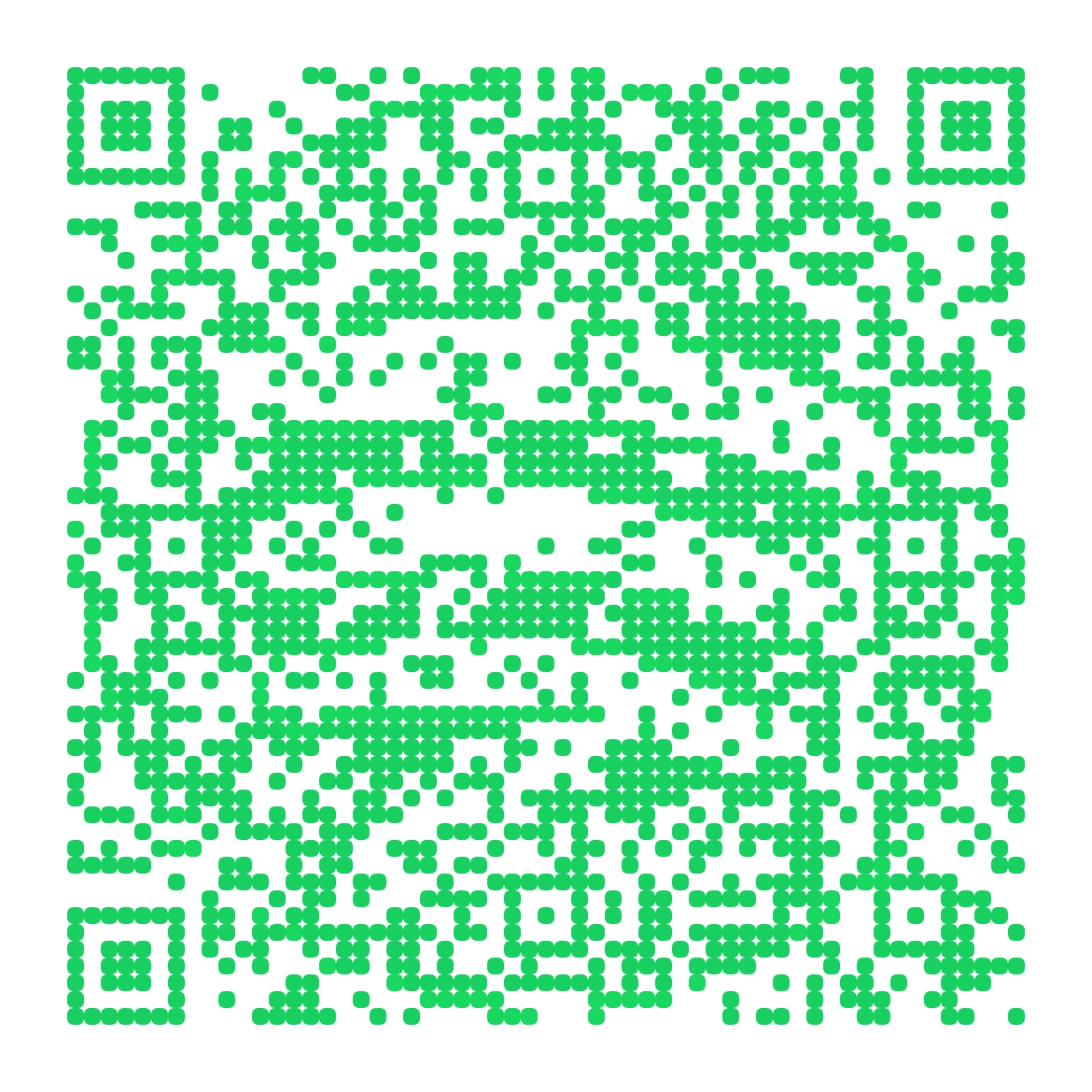
Spotify podcast example
The Daily
A show page destination for an event sign, guest one-sheet or sticker. Print the show name next to the code with a prompt like “Follow on Spotify.”
Open the show on SpotifyTry this show in MosaicQR →
This direct-link example was rendered with MosaicQR’s image engine. Spotify, The Daily and The New York Times own their respective names and marks. This example is not sponsored or endorsed by them.
Link to the show, not a single episode
A show page keeps working as you publish new episodes. An episode link sends every future scan to the same old recording, which is rarely what you want on a printed sign or a sticker.
In the Spotify app, open your show, tap the share option and copy the link to the show. It looks like open.spotify.com/show/ followed by a short ID. The link may also end with a ?si= share code. The show ID before it is the part that matters.
The example above uses The Daily’s show page. MosaicQR uses Spotify’s favicon as the visual source, not the show’s cover art.
Make your Spotify podcast QR code in three steps
- Copy the show link. Open it once in a browser and confirm the show name and host are the ones you expect.
- Paste it into MosaicQR. The form below recognizes a Spotify show page and carries the full link into the generator.
- Activate, test and download. Complete the current account and activation steps, then scan the exported artwork before you add it to any printed or on-screen material.
Give people a reason to scan
“Scan me” does not tell anyone why it is worth their time. Name the show and the action. “Follow The Daily on Spotify” or “Hear the full interview on Spotify” sets a clear expectation.
If a guest appearance or live event is the hook, say that in the prompt. Keep the promise true for where people see it. If the episode is not out yet, do not print “Listen now.”
Where a podcast QR code works
- Live shows and tapings: Put the code on a sign near the exit or on a seat card, where people can scan without missing the show.
- Talks and panels: Add it to your last slide and leave it up long enough for the room to aim their phones.
- Stickers, merch and mic flags: Keep the show name printed next to the code so the item still makes sense to people who do not scan.
- Guest one-sheets and business cards: A code next to your contact details gives bookers and guests a fast way to hear your show.
- Local posters: Size the code for the real viewing distance, not just the design file on your screen.
In a social post, newsletter or show notes, use a normal tappable link. A QR code helps most when the listener is looking at a physical surface or a different screen.
Plan for listeners on other apps
This code opens your show on Spotify. People who listen somewhere else may skip it. If that matters for your audience, say “on Spotify” in the prompt so nobody is surprised, and keep the show name easy to search in any podcast app.
Spotify also offers its own Spotify Codes, which are scanned inside the Spotify app. A standard QR code like the one MosaicQR makes can be scanned with a regular phone camera.
Test the scan before you print
On a phone with Spotify installed, a show link usually opens in the app. Without it, people may see the web page or a prompt to sign in or download. Those screens are controlled by Spotify, so test both paths.
- Scan with current iPhone and Android camera apps.
- Try one phone with Spotify installed and one without it.
- Confirm the show name and cover art on the page that opens.
- Scan the final export at its printed or on-screen size.
- Test in the lighting and distance of the real venue.
See the MosaicQR printing guide for sizing and export guidance. Print the show name near the code for anyone who cannot scan in time.
The current MosaicQR generator creates dynamic codes. Follow the account and activation details it displays, and check any destination update with a fresh scan before you reuse older printed material.
Make a branded QR code for your Spotify podcast
Paste your public Spotify show link. We’ll recognize the show and carry the destination into the MosaicQR generator.