App promotion · 5 min read
How to Promote Your iOS or Android App With a Branded Store QR Code
Turn your App Store or Google Play listing into a branded QR code. Learn where to use it and what to test before printing.
By MosaicQR team · Published · Updated
Baking the store badge directly into the QR pattern gives people an immediate visual signal before they scan. Clearly indicating whether a code goes to the App Store or Google Play builds trust upfront, cuts drop-off, and drives noticeably higher app download conversions.

Apple App Store
Duolingo
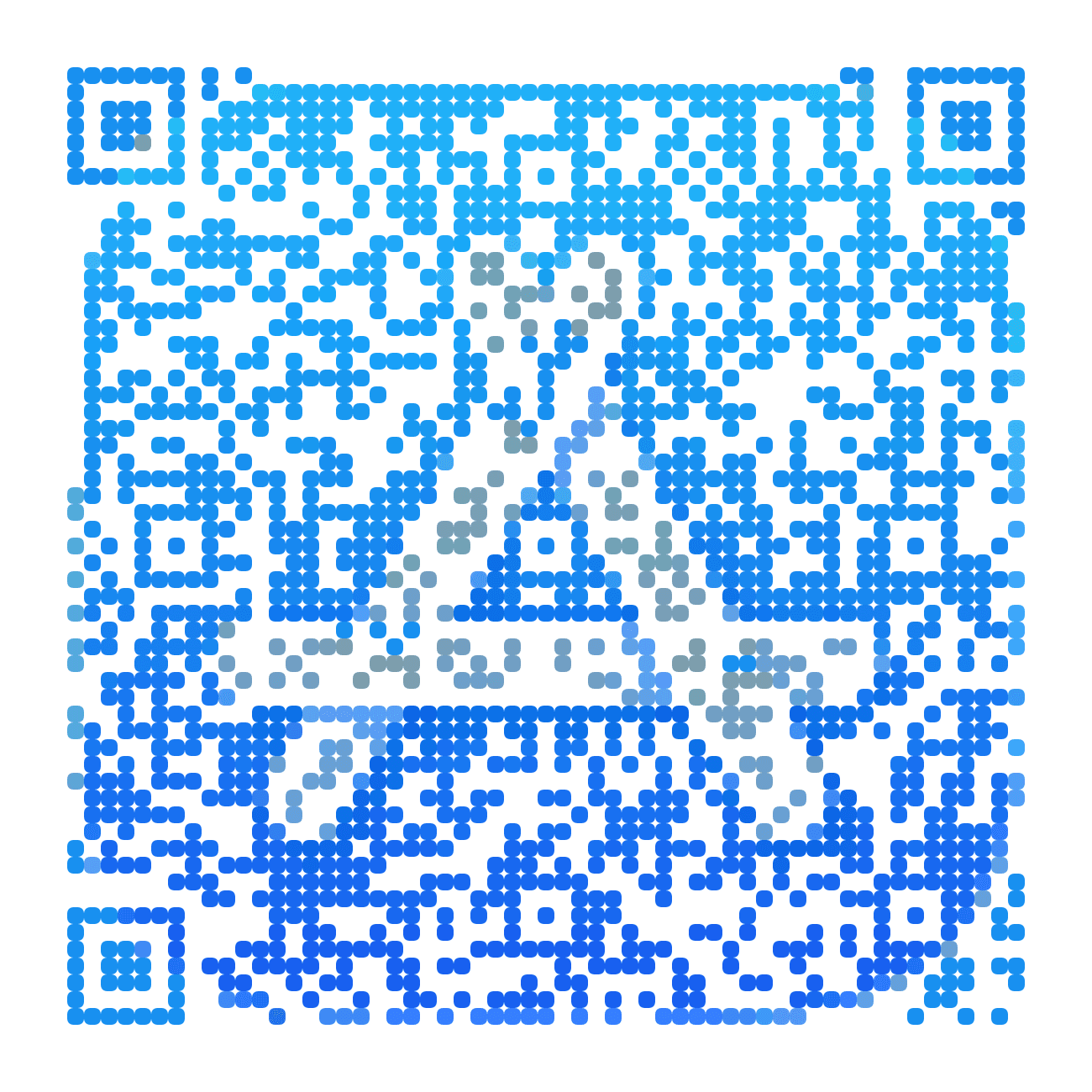

Google Play
Duolingo
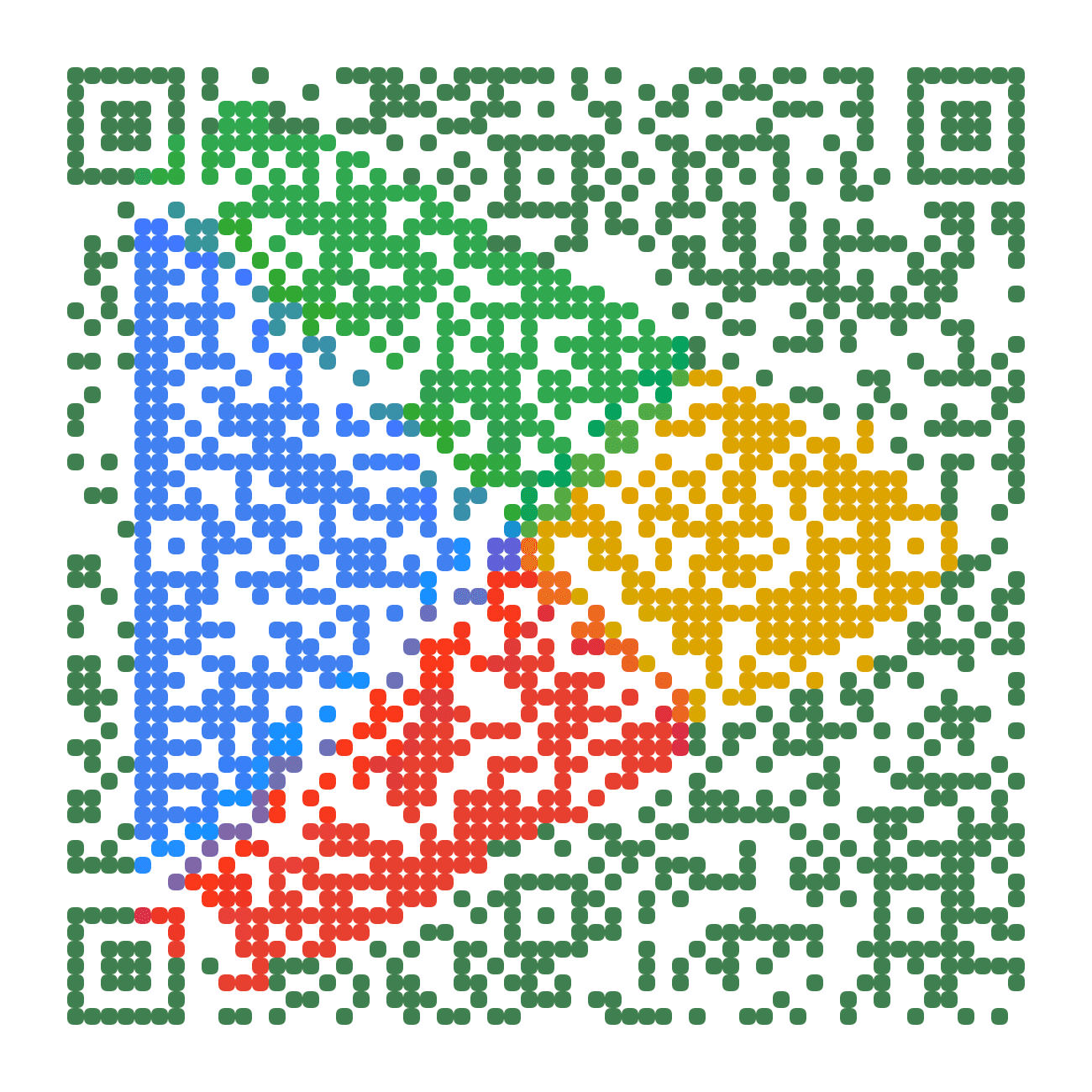
Rendered with MosaicQR. Apple, Google Play, and Duolingo own their respective marks; examples are shown for illustrative purposes.
How to set it up
- Grab your direct listing link. Use your actual
apps.apple.comorplay.google.com/store/appsURL (avoid search result links). - Paste it into MosaicQR. It detects the store, grabs the clean store mark, and generates your branded mosaic.
- Test before printing. Scan the high-res export with both iOS and Android cameras before sending anything to the printer.
Quick pre-print checklist
- Physical size: Keep it at least 1.25 inches (32mm) wide for handheld flyers, larger for posters viewed from a distance.
- Quiet zone: Leave a little breathing room around the border so camera software can detect the corners cleanly.
- Always keep a text URL: On digital materials or decks, always include a normal clickable link alongside the code.
Make a branded QR code for your app
Paste your store listing. We’ll recognize the destination and carry it into the MosaicQR generator, with the store favicon ready to use.